Verizon Fios Router DNS Settings
This was much harder to figure out than it should have been, so for the sake of my future self and anyone else who needs to do this, here are the steps to set DNS servers on a Verizon Fios router. If your interface looks different than mine, you may have a different router model or firmware version, but the steps should be similar.
Why do this? That is for the another post!
1. Log in to your router
The usual way is to go to https://myfiosgateway.com in your web browser, you will get a warning about the certificate, click advanced and and proceed. If that doesn’t work, try https://192.168.1.1. But, make sure you use https.
You need password. If you never changed the password, it should be on a sticker on the router. If you did change it and forgot it, you may need to reset the router to factory settings, but I have not done that, so good luck.
1.5 Backup your settings
Click Save & Restore Settings and make a backup of your settings, you will need them if something goes wrong. You can make a backup to the cloud and locally.
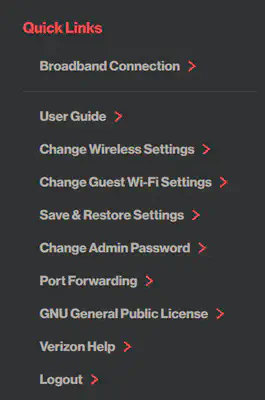
2. Go to the DNS settings page
and make the changes…..haha, if only.
2. Broadband Connection
On the left of the screen click on Broadband Connection.
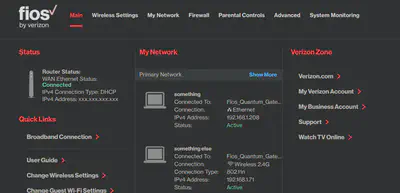
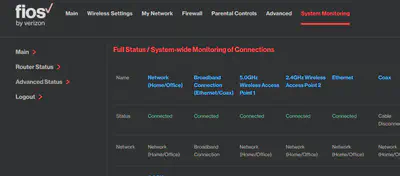
3. Full Status/System-wide Monitoring of Connections
Along the top of this rather crammed page, click on Broadband Connection (Ethernet/Coax).
4. Broadband Connection (Ethernet/Coax) Properties
Scroll to the bottom of this page and you will your DNS servers in all their glory. Now, were getting somewhere.
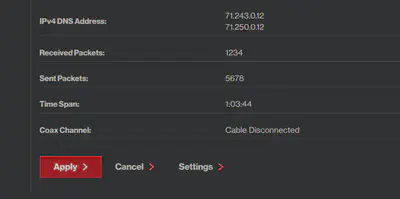
5. Broadband Connection (Ethernet/Coax) Properties (editing this time)
Scroll down to IPv4 DNS, and click in the box. Choose Use the following IPv4 DNS Addresses.
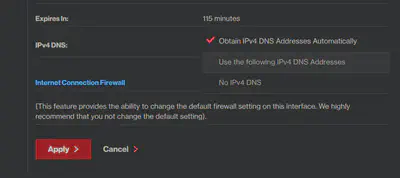
Then enter your preferred DNS servers. You have to enter two different IP addresses.
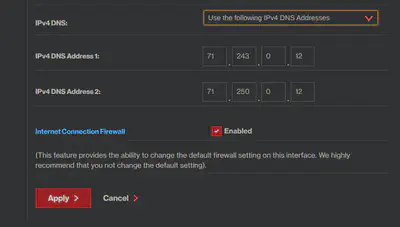
What a pain that was to find, but there, that’s it!