Docker Desktop Linux X11 Forwarding from Container to Host
Oh boy, this was much harder than I expected. I found guides and articles and blog posts on how to do this, but none of them worked for me.
What I wanted to do
I like running applications in containers; I wrote a post about running Claude Code in a container. For a while, I’ve wanted to run GUI applications in a container and forward the X11 display from the container to the host.
Why do this? Sometimes I don’t want to install an application on my host computer; it might be something I won’t use often, or it might be something I want to try out, or it could be something I’m a little concerned about and don’t want it to have access to my personal files (like Claude Code).
How to do it
There are a few steps.
The Dockerfile
It starts with a Dockerfile. I’m going to use ubuntu:24.04 as the base image, and install a few things including xeyes, because that is like the “Hello World” of X11 applications. I also include gedit because it is a nice, simple text editor that is a bit more complex than xeyes.
This is the Dockerfile -
FROM ubuntu:24.04

# avoid interactive prompts during package installation
ENV DEBIAN_FRONTEND=noninteractive

# Update package lists and upgrade installed packages
RUN apt-get update && apt-get upgrade -y

# install lots of stuff, some might not be necessary, you can tweak it to see what works
RUN apt-get install -y \
    x11-apps \
    x11-utils \
    x11-xserver-utils \
    dbus-x11 \
    at-spi2-core \
    gedit \
    fonts-dejavu-core \
    fonts-liberation \
    adwaita-icon-theme \
    gnome-themes-extra \
    wget \
    curl \
    gpg \
    sudo \
    && rm -rf /var/lib/apt/lists/*

CMD ["/bin/bash"]
Nothing too special or fancy here.
xhost
In a terminal, run this command -
xhost +local:This allows any local user to connect to the X11 server. This is necessary for the container to be able to connect to the X11 server on the host.
socat
What? socat?
This is the thing that solves the problem that is unique to Docker Desktop. It allows you to forward the X11 display from the container to the host.
You probably need to install it. I didn’t have it, and I’ve been using Linux for a long time. On Ubuntu, you can install it with -
sudo apt install socatNow run it with this -
socat TCP-LISTEN:6000,reuseaddr,fork UNIX-CLIENT:/tmp/.X11-unix/X0- TCP-LISTEN:6000 - listen for TCP connections on port 6000, which is the default port for X11.
- reuseaddr - allows the socket to be reused, which is useful if you need to restart the socat command.
- fork - allows multiple connections to be handled simultaneously.
- UNIX-CLIENT:/tmp/.X11-unix/X0 - this is the path to the X11 socket on the host, which is where the X11 server is listening for connections.
Keep this terminal open.
Run the container
Finally, run the container with this command -
docker run -it --rm \
    --add-host=host.docker.internal:host-gateway \
    -e DISPLAY=host.docker.internal:0 \
    --ipc=host \
    --name x11_local \
x11_local--add-host=host.docker.internal:host-gateway- adds a host entry forhost.docker.internal, which is the hostname that Docker Desktop uses to refer to the host machine. This is necessary for the container to be able to connect to the X11 server on the host.-e DISPLAY=host.docker.internal:0- sets theDISPLAYenvironment variable in the container to point to the X11 server on the host. The:0part is the display number, which is usually 0 for the first display.--ipc=host- allows the container to share the IPC namespace with the host, some GTK/GL apps require this.--name x11_local- this is the container name.- `x11_local’ - the name of the image to run.
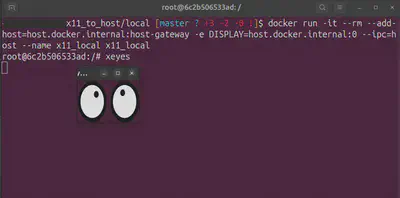
When you’re in the container, run xeyes or gedit, and you should see the application running on your host computer.
Conclusion