Claude Code in a Container
There are a lot of opinions about running Claude Code and other AI tools on your personal computer. Some are in favor, some against.
I don’t want to do it, I want Claude isolated away from my personal files.
One option is to create a full virtual machine, this is heavy, and will be slower to start and use.
A faster, lighter option is to use a Docker container. It is extremely fast to start, as quick as opening a terminal. All of my changes are saved to a Docker volume, and I mount a directory from my host computer into the container so I can easily access the source code on my host computer.
It is a relatively simple process, even if you don’t know much about Docker the instructions here should be easy to follow.
Here is the Dockerfile I use. You can, of course, choose a different base image, but using Alpine with the .NET SDK suits me. I have inline.
FROM mcr.microsoft.com/dotnet/sdk:10.0-alpine

WORKDIR /root # Set the working directory inside the container

RUN apk update && apk upgrade # Update package lists and upgrade installed packages
RUN apk add bash # Install bash shell

RUN curl -fsSL https://claude.ai/install.sh | bash # Install Claude Code

RUN echo "PATH=$PATH:/root/.local/bin" >> .bashrc && chmod 700 .bashrc # Add Claude Code to PATH in .bashrc and set permissions

ENTRYPOINT [ "bash" ] # Set the default command to bash
To build this Docker image, run the following command in the same directory as the Dockerfile -
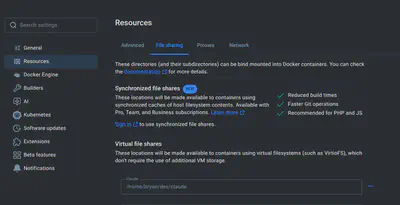
docker build -t claude_with_dotnet .Before you start the container, you need to decide which directory on your host computer you want to mount into the container. This is where you will store the files that you want to access from inside the container. I have a specific directory for Claude generated applications /home/bryan/dev/claude.
In Docker Desktop, go to Settings > Resources > File sharing and add the directory you want to mount into the container. This is required for Docker to allow access to that directory.
Now all that is left is to run the container; there is quite a bit to the command.
docker run -it --rm \
 --volume claude_with_dotnet_vol:/root \
 --mount type=bind,source=/home/bryan/dev/claude/,target=/root/dev \
claude_with_dotnet-it- runs the container in interactive mode with a terminal attached.--rm- removes the container when it exits. This is optional, as the things I change in/rootare saved to the Docker volume, so I don’t need to keep the container around.--volume claude_with_dotnet_vol:/root- this creates a Docker volume to store the/rootdirectory from the container. This is where Claude Code and anything I will work on will be stored. The volume is created the first time you run the container.--mount type=bind,source=/home/bryan/dev/claude/,target=/root/dev- this mounts the directory/home/bryan/dev/claude/from my host computer into the container at/root/dev. This is where I will use Claude to generate code, and I can easily access it from my host computer.
Here it is as a single line -
docker run -it --rm --volume claude_with_dotnet_vol:/root --mount type=bind,source=/home/bryan/dev/claude/,target=/root/dev claude_with_dotnetWhoomp, there it is!
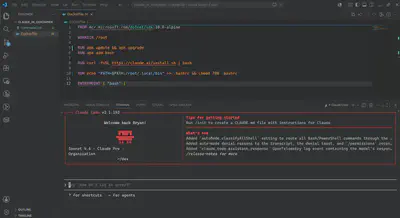
A completely isolated Claude instance that has no access to any files on your computer other than the ones you explicitly share with the container.